Aseprite Extension
Pixel Art Detector
Detect and refine pixel-art output characteristics.
Pixel Art Tab
What Is This?
The Pixel Art tab uses ComfyUI-PixelArt-Detector to reduce and convert the colors in your active sprite to a target palette. Instead of generating a new image from a prompt, this tab processes your existing canvas and remaps its colors to match a chosen palette — either one of the built-in presets or your sprite’s own Aseprite palette.
What you can do:
- Reduce an image to a classic retro palette (NES, GAMEBOY, PICO8, CGA, and more).
- Remap colors to your current Aseprite palette to enforce a consistent color scheme across multiple sprites.
- Control how colors are quantized, how underused colors are cleaned up, and whether dithering is applied.
- Optionally resize the output at the same time as palette conversion.
Quick Start
- Open the sprite you want to convert in Aseprite.
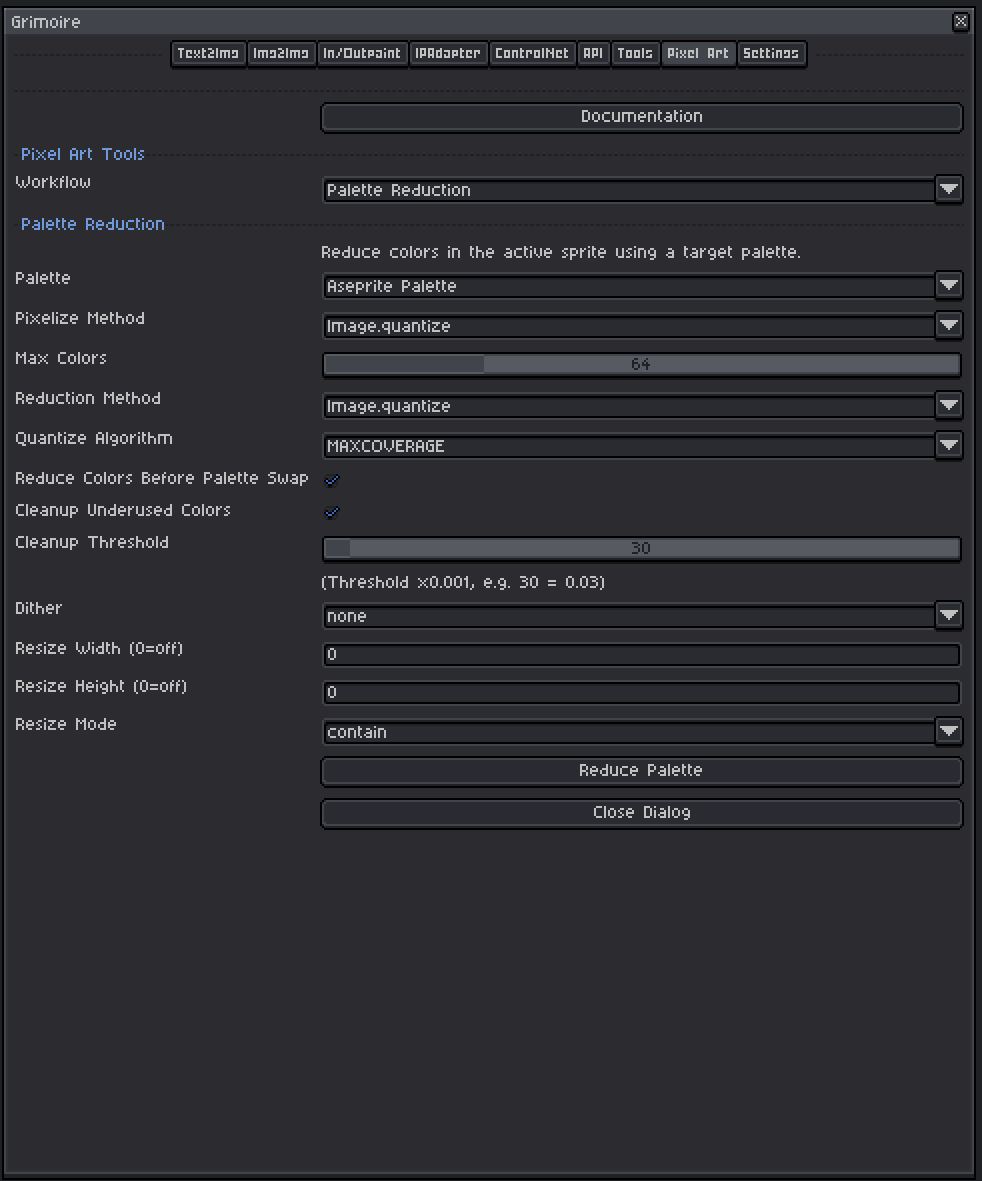
- Open the generation dialog and switch to the Pixel Art tab.
- Select a Palette — choose
Aseprite Paletteto use the colors already in your sprite, or pick a preset likeNESorPICO8. - Leave Pixelize Method and Reduction Method at their defaults to start.
- Adjust Max Colors if needed — it defaults to the number of colors in your current Aseprite palette (clamped to 8–256).
- Click Reduce Palette.
The result replaces the canvas content with the palette-converted image.
Installation
The Pixel Art tab requires the ComfyUI-PixelArt-Detector custom nodes. These are installed automatically during the Black Magik setup process. If they are missing, run Edit → Black Magik → Installation → Restart Installation to trigger the setup again.
- Repository:
https://github.com/dimtoneff/ComfyUI-PixelArt-Detector
Palette
Selects the target palette that all colors in the sprite will be mapped to.
| Option | What It Does |
|---|---|
Aseprite Palette |
Uses the actual colors from your current sprite’s palette. The palette is exported as a small PNG and fed to ComfyUI — you get a conversion that stays within the exact colors you have already defined in Aseprite. |
GAMEBOY, NES, COMMODORE64, CGA, PICO8, etc. |
Uses a built-in preset palette from the PixelArt Detector node. No Aseprite palette setup needed. |
Available presets: GAMEBOY, NES, COMMODORE64, CGA, PICO8, STEAM_LORDS, RESURRECT64, AAP64, APOLLO, ENDESGA64, ZUGHY32, LOSPEC500, SWEETIE16, FANTASY16, CYBERPUNK.
Note: When using Aseprite Palette, the sprite’s palette must have between 8 and 256 colors.
Controls
| Control | What It Does |
|---|---|
| Pixelize Method | How pixels are sampled during the conversion. Image.quantize is the standard choice. Grid.pixelate applies a grid-based pixelation before quantizing. NP.quantize uses NumPy-based quantization. |
| Max Colors | The maximum number of colors allowed in the output. Defaults to the number of colors in your Aseprite palette (clamped to 8–256), or 64 if no sprite is active. |
| Reduction Method | The algorithm used to reduce the image to Max Colors before the palette swap. Image.quantize is fast and reliable for most use cases. The OpenCV and Pycluster k-means options can produce better perceptual results but are slower. |
| Quantize Algorithm | The quantization algorithm used by the Image.quantize reduction method. MAXCOVERAGE works well for most pixel art. MEDIANCUT and FASTOCTREE are alternatives if results look off. |
| Reduce Colors Before Palette Swap | When enabled, the image is first reduced to Max Colors before it is mapped to the target palette. Disabling this skips the reduction step and maps directly. |
| Cleanup Underused Colors | When enabled, palette colors that appear on fewer pixels than the threshold are removed. Useful for eliminating near-duplicate colors or single-pixel color noise. |
| Cleanup Threshold | Controls how aggressively underused colors are removed. The slider value is multiplied by 0.001 — for example, 30 = 0.03. Higher values remove more colors. |
| Dither | Applies a dithering pattern when mapping colors to the palette. none is clean and sharp. floyd-steinberg gives smooth gradients. bayer-2/4/8/16 apply ordered dithering at increasing grid sizes. |
| Resize Width / Height | Optionally resize the output. Set to 0 to keep the original dimensions. |
| Resize Mode | How the image is resized if Width or Height is set. contain preserves aspect ratio and fits within the target size. fit scales to fill the target. stretch ignores aspect ratio. |
Notes
- The conversion replaces the canvas content — the previous canvas layer is hidden automatically.
- When
Aseprite Paletteis selected, Max Colors is automatically set to the sprite’s palette size on dialog open. - Dithering and color reduction interact: dithering is applied after the palette swap, so it uses the final target palette colors.
- The Cleanup Threshold label shows
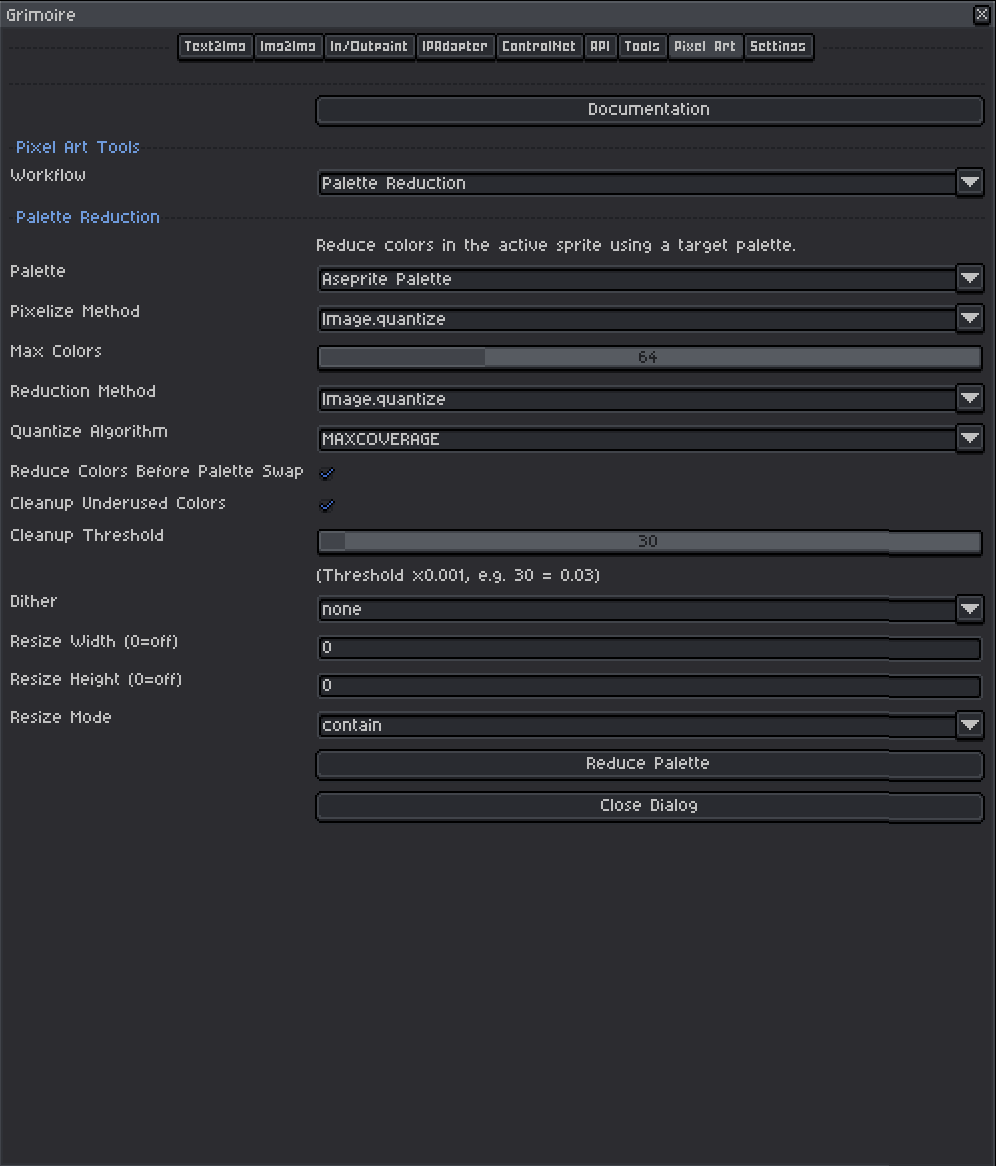
(Threshold x0.001, e.g. 30 = 0.03)as a reminder of the scaling.